How to Configure URL Parameter Tracking in Apptrove for Impression and Click Attribution?
The accurate attribution of impressions and clicks in Apptrove relies on the proper implementation of all URL parameters for both impression and click links. These URL parameters are embedded in the attribution links for both Android and iOS touchpoints and are essential for recording all required campaign, device, and partner data.
The purpose of this article is to provide a full listing of the supported impression and click parameters in Apptrove, as well as to explain how each is utilised. But you should also read, “What URL parameters are and how to use them.”
How to Use URL Parameter Tracking for Impressions in Attribution Links
When an impression occurs, the impression URL parameters track and record data regarding that impression via the attribution links created by Apptrove for both Android and iOS touchpoints.
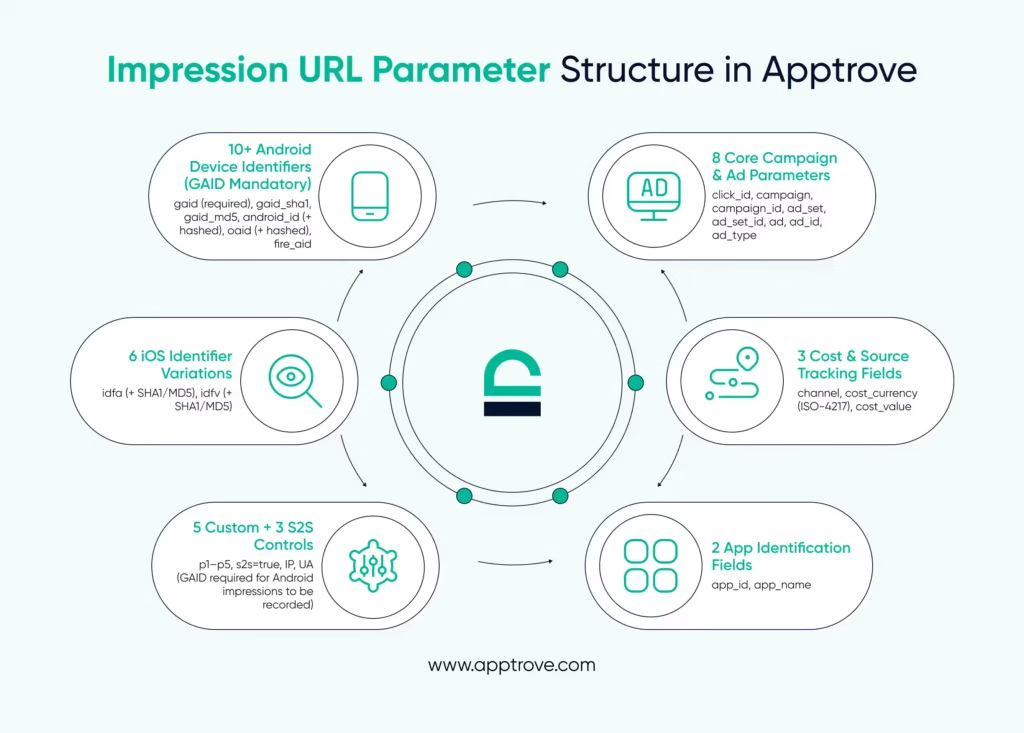
How to Create Attributions for Campaigns and Ads
The following parameters will create attributions for the structure of a campaign, as well as for individual ads within that campaign:
- click_id – Partner click ID unique identifier.
- ad – The name of an ad, as provided by the advertiser/publisher.
- ad_id – An ad’s unique identifier.
- ad_set – The ad group to which an ad belongs.
- ad_set_id – Ad group unique identifier.
- campaign – The name of the advertising campaign.
- campaign_id – Advertising campaign unique identifier.
- ad_type – The format of an ad (text, banner, video, etc.).
- Keywords – Keywords used for targeted campaigns
- is_retargeting – Specifies if the impression is part of a retargeting campaign (true/false)
Each URL parameter ensures the correct mapping of impressions to campaigns and creatives.
How to Include Channel and Cost Details
The following parameters are tracked for financial and source-level tracking of advertisements:
- Channel – The advertisement source that is used to track where a user came from besides Google Play, such as the App Store or Samsung Store.
- Cost-currency – A three-letter currency code defined by ISO-4217 (USD/INR).
- Cost-value – The value of the cost associated with an impression in the corresponding currency.
How to Provide App and Device Identifiers?
Impression links allow identification of both the application and the device on both iOS and Android.
App Information:
App_id: The id of the app.
App_name: The app’s name.
Android Identifiers
- Gaid: The Google advertising id (this is a required parameter).
- Gaid_sha1: SHA1 version of the gaid.
- Gaid_md5: MD5 version of the gaid.
- Android_id: The Android device id.
- Android_id_sha1: SHA1 version of the Android ID.
- Android_id_md5: MD5 version of the Android ID.
- Oaid: The open advertising id for Huawei devices.
- Oaid_sha1: SHA1 version of the oaid.
- Oaid_md5: MD5 version of the oaid.
- Fire_aid: The advertising id for Amazon Fire devices.
If your impression link does not have the appropriate GAID for Android, Apptrove will not register an impression with your partner.
iOS Identifiers
- SHA1 IDFA – The SHA1 hash of the IDFA.
- MD5 IDFA – The MD5 hash of the IDFA.
- IDFV – The identifier for vendors by Apple.
- SHA1 IDFV – The SHA1 hash of the IDFV.
- MD5 IDFV – The MD5 hash of the IDFV.
How To Set Up Server-To-Server (S2S) & Other Impression Parameters?
Apart from the above-mentioned impression tracking URL parameters, additional URL parameter tracking is possible using the following types of custom parameters:
P1, P2, P3, P4 and P5 – Custom tracking parameters.
What Is S2S?
S2S enables the tracking of impression data using server-to-server communication via the impression URL by supplying the URL with an S2S parameter value of true (s2s=true).
- IP – The IP address of the device at the time of the impression.
- UA – The user agent string of the device, which provides information about the device (browser and operating system).
- S2S, IP and UA are only displayed as impression parameters when the Get S2S URL feature is enabled; otherwise, they will not be shown.
How To Configure Click Tracking URL Parameter in Apptrove
Click attribution tracks the user’s interaction with a click URL event on Android or iOS. Click URL parameters are defined and used to track the information needed for attribution.
How To Pass The Publisher & Partner Information
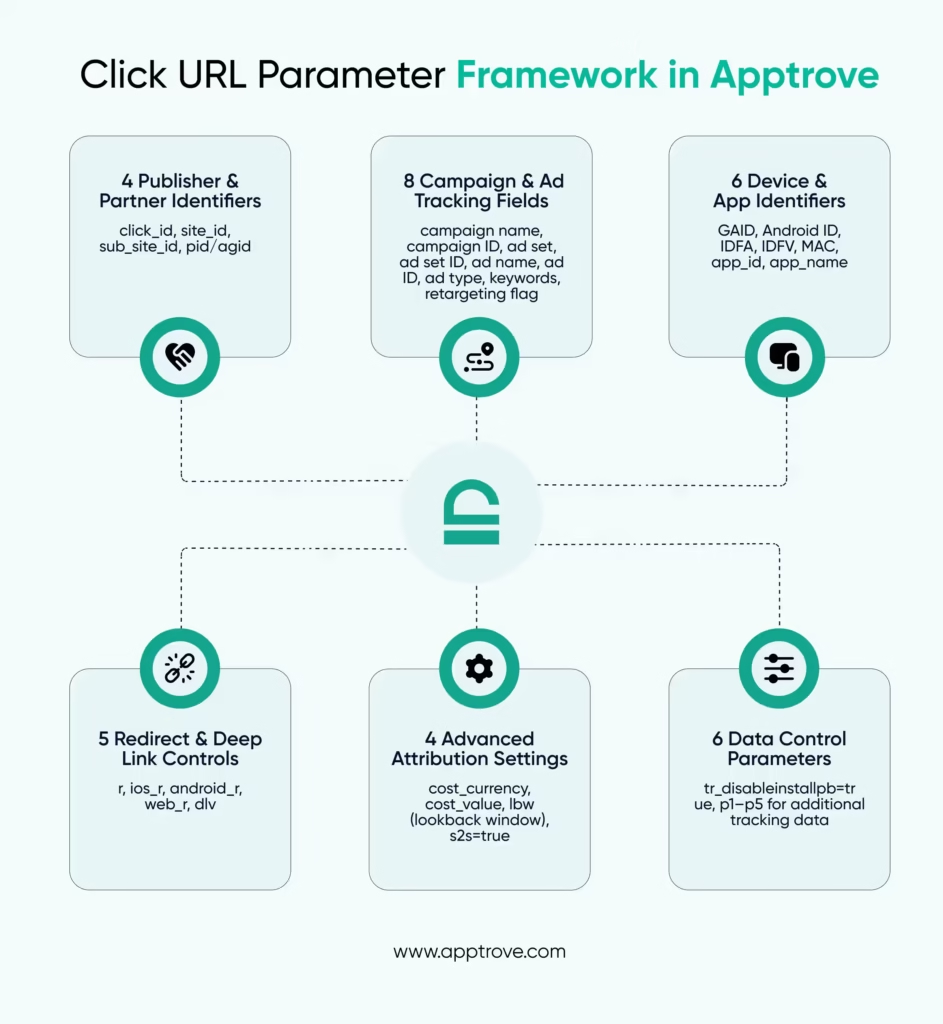
- Click tracking includes the Publisher and the Partner ID.
- Click ID is the Partner Click ID.
- Site ID is the unique identifier that identifies the publisher displaying the ad.
- Sub-Site ID is the ID for the ad sub-network or sub-publisher.
- PID / AGID – Partner ID / Agency ID.
How to Include Campaign and Ad Details in Click Links
The following are the types of url parameter available in click links used for campaigns and ads:
- Ad Set: A group of ads that has the same settings configured, and is referred to as an ad set.
- Ad Set ID: A unique identifier assigned to an ad set.
- Ad Type: The format of an ad (e.g., text, banner, video).
- Ad Name: The name of the ad.
- Ad ID: Ad ID as provided by the advertiser/publisher.
- Campaign Name: The name assigned to the ad campaign.
- Campaign ID: A unique identifier assigned to an ad campaign.
- Keywords: A keyword list used for targeting ads in text campaigns.
- Retargeting: A flag indicating whether this is a retargeting (yes or no).
The following identifiers may be associated with click links to track device and application usage:
- IDFA: Identifier for advertisers from Apple.
- IDFV: Identifier for vendors.
- Android ID: Android device id.
- GAID: Google Advertising ID.
- MAC: The MAC address of the device.
- App ID: The unique identification of an app, as provided by either Apple or Google.
- App Name: The app’s name as it appears in the store.
Follow these steps to configure redirect and deep link URL Parameters
parameters in the Apptrove click links:
- R = Redirect to a specific URL for each platform (iOS, Android, Web).
- iOS_R = Redirect to a specific URL for the iOS platform.
- Android_R = Redirect to a specific URL for the Android platform.
- Web_R = Redirect to a specific URL for the Web platform.
- DLV = Deep link value to direct users to specific content available through the mobile application.
How to Configure Advanced Click Settings
In addition to the above options, you also have the following configuration options when adding clicks to your app:
- cost-currency – A three-letter ISO-4217 currency code to identify the currency used for cost.
- cost-value – The value of the cost in the specified currency.
- lbw – Defines the length of time that will be looked at for count-back comparing two events.
- s2s – Enables server-to-server tracking of clicks by adding “&s2s=true” to your impressions or clicks.
- tr-disableinstallpb – Prevents the installation postback from firing by adding “&tr_disableinstallpb=true” to your impressions or clicks.
- p1, p2, p3, p4, p5 – Open parameters where you can send additional data to Apptrove.
Tips for Accurate Attribution with Apptrove
To achieve accurate attribution with Apptrove, follow these rules:
- Include a valid GAID for your Android impressions.
- Use the correct parameter in your URL for the campaign, device, and cost tracking.
- Enable s2s tracking if needed.
Whenever your data does not match any current URL parameters, use parameters p1-p5 to pass this information through your impressions or clicks.
By implementing these parameters correctly on both your impression and click tracking links, Apptrove will aggregate all campaign impressions on both the Android & iOS platforms.
We are delighted to have assembled a world-class team of experienced professionals who are ready to take care of your queries and answer any questions you may have.
Feel free to reach out to us at any time by emailing us at support@apptrove.com or by using the in-platform chat feature. We’d love to hear from you!
from Apptrove https://apptrove.com/configure-url-parameter-in-apptrove/
via Apptrove


Comments
Post a Comment