How to Learn Your Way Around the Apptrove Dashboard?
The first step to managing and optimizing your app’s marketing success is to understand the Approve Dashboard. This guide will take you through each of the key components of the platform, allowing you to easily navigate through the platform while also helping you make informed decisions using only data.
Overview of the Apptrove Dashboard
The Dashboard is your command centre where you can find all the necessary information that pertains to your campaigns, app installations and user engagement. The dashboard provides you with an overall picture of your performance, making it easy to see trends and find areas to improve.
You can track campaign performance, see how users are behaving, and track any KPIs you have set from a single dashboard without switching between different applications. The purpose of the Apptrove Dashboard is to turn convoluted data into actionable insights.
Add your Application
You can follow the steps below to add your app to our platform.
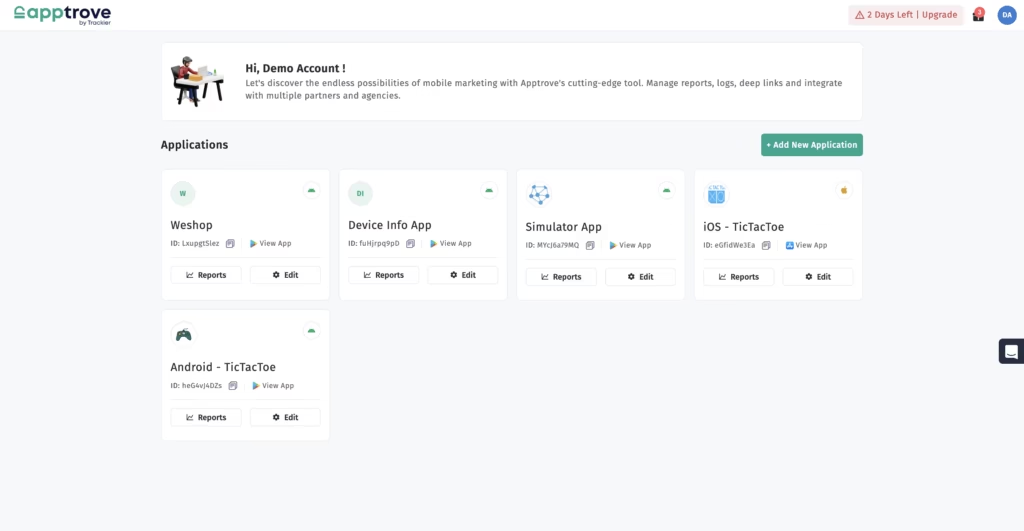
- Step 1: Go to the “Action” button and click on “Add New App.”
- Step 2: Select Application Status
- Step 3: Enter the “App Details.”
- Step 4: Integrate SDK.
For more information, click here.
Understanding Reports in the Apptrove Dashboard
Using the Apptrove unified dashboard Reports is a great way to get additional insight into your Performance Metrics. Each report type has a different function:
- Daily Reports – Gives you an overview of your performance metrics over time.
- Partner Reports – Helps you identify differences in media performance or how each media partner performs.
- Event Reports – Tracks user activity within your app.
- Activity Reports – Gives you a general overview of user activity and campaign activity as a whole. By utilizing the reports contained in the Dashboard, you can connect your Marketing efforts to your User Engagement levels and the overall result.
Profile
- Go to the profile icon in the top right corner.
- Click on the “Profile” option.
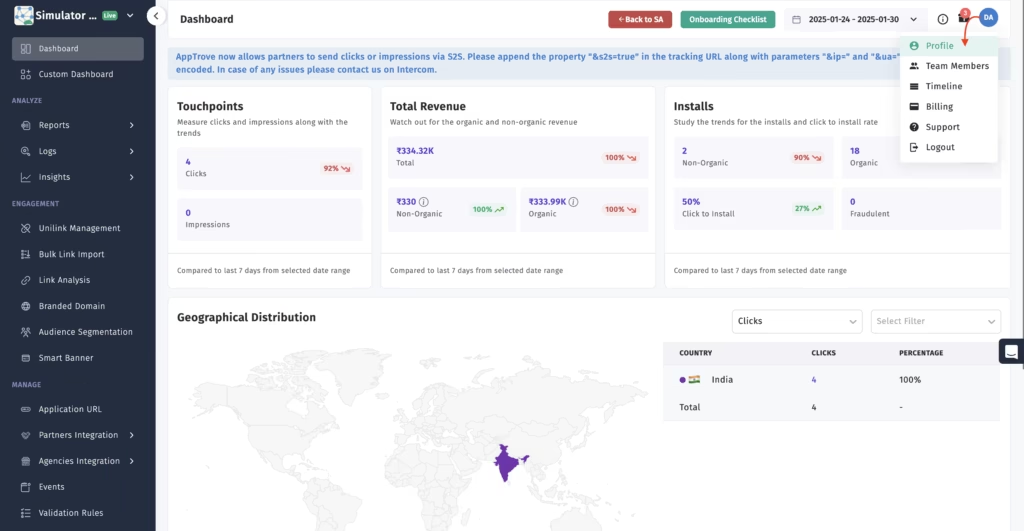
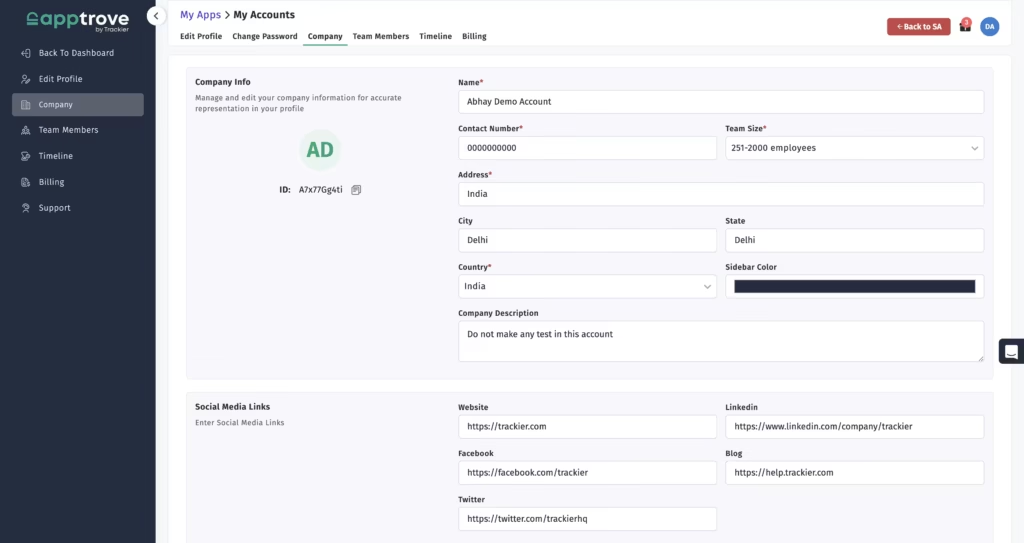
- You can change your basic details and password from here.
- By clicking the “Company” profile, you can add your company details as well.
Tracking Events in the Apptrove Dashboard
Tracking Events is a vital function of the Apptrove Dashboard. It helps you monitor specific user actions, such as registering for your app, purchasing items from your app, and other key user interactions.
Each Event is tagged with a unique ID to guarantee the accuracy of tracking and reporting. Once setup, Events will automatically be logged by the Apptrove Dashboard, providing you with the ability to measure User Engagement and effectiveness of your Campaigns with a high degree of accuracy.
Add your Team Members
- Go to your profile icon and click on the “Team Members” option.
- Go to the “Action” button on the top and click on the “Add Team Members” option on the top.
- Add the user details and click on the next option.
- If you have multiple apps added to your dashboard, then you can select the app for which you want to provide the permission.
- Once you have selected the application, click on the next option. Here you can select multiple permission levels. You can customize the permission levels according to your requirements.
- For detailed information on team members, you can refer to the dedicated knowledge base article, and click here to access it.
Attribution in the Apptrove Dashboard
The Apptrove Dashboard provides you with a high level of Attribution, giving you the ability to view the Sources of installs and user actions by Campaign. The Dashboard consolidates data from all Sources to ensure that each interaction has the proper attribution. This gives you the ability to identify High performing Campaigns and effectively allocate resources.
App Details
- Go to the bottom left in the navigation bar and click on the three-dot
- Go to the settings option
- Select “App Settings.”
- You can add and change your basic app details from here.
Integrations Within the Apptrove Dashboard
The Dashboard is a Robust Tool for Managing Your Workflow. When integrated with other partners and platforms, your data is automatically uploaded into the dashboard, providing you with real-time tracking and reporting.
With these integrations, there’s no need for manual data management, and your Apptrove Dashboard has the most current information available.
Preventing Fraud and Accuracy of Data
The Apptrove dashboard has internal capabilities to stop fraudulent activity and provide you with a way to maintain a high degree of accuracy with your campaign data. The dashboard has safeguards in place to help you detect suspicious installs or interactions. The dashboard also provides reliable performance analysis and data-driven decision making.
Change the Currency
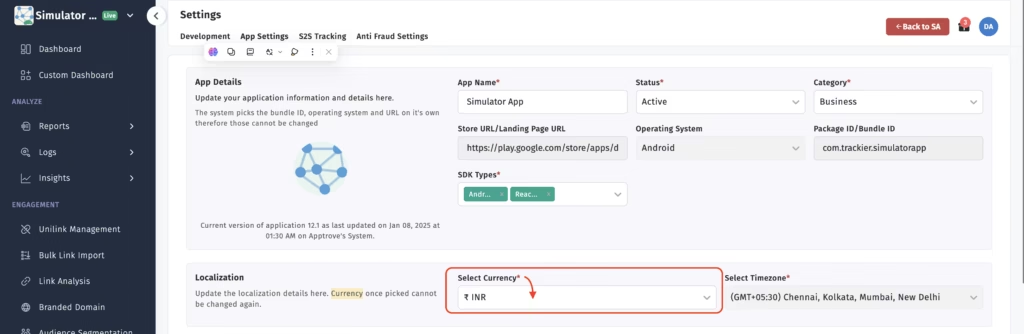
- Click on your application on your dashboard.
- Go to the settings option from the side tab.
- Select the “App Details.”
- You can change the currency from here.
Logs and Detailed Analysis
The dashboard gives users access to logs of the details of every click, every event, and every postback. The detailed logs of this data will allow you to analyse at a detailed level, making it easier to troubleshoot issues or verify campaign performance. With access to this information through the Apptrove dashboard, you have complete transparency into your data.
Whitelist IPs
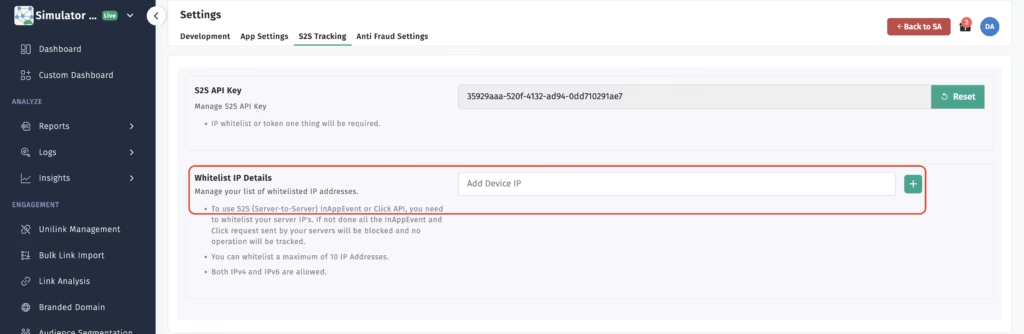
- Go to the settings option from the side tab.
- Select the “S2S Tracking.“
- You can whitelist the IP’s from here.
To Wrap Up
The Apptrove dashboard allows you to go from a high-level overview of your company to a deeper analysis of your data, all from one place. By taking advantage of the tools provided within the apptrove dashboard (reporting, event tracking, attributions and integrations), you will have a better understanding of how users interact with your brand.
We are delighted to have assembled a world-class team of experienced professionals who are ready to take care of your queries and answer any questions you may have. Feel free to reach out to us at any time by emailing us at support@apptrove.com or by using the in-platform chat feature. We’d love to hear from you!

from Apptrove https://apptrove.com/how-to-learn-your-way-around-the-apptrove-dashboard/
via Apptrove


Comments
Post a Comment