How to Enable Two-Factor Authentication in Apptrove for Stronger Account Security?
With all campaign data, reports, and user insights stored together, keeping your dashboard protected is a top priority. Two-factor authentication provides an additional layer of verification beyond your password to ensure that only those who are authorised can access your account. If your login credentials are ever compromised, two-factor authentication will mitigate the risk of unauthorised access.
All teams that work across marketing, analytics and product functions should take steps to protect sensitive data. By enabling two-factor authentication, you will ensure that your account remains protected and you are not disrupted from your day-to-day activities.
What Is Two-Factor Authentication & How It Works
Two-Factor Authentication is a method of security that requires two different forms of identification to gain access. The first form of identification is a password, and the second form of identification is a time-sensitive verification code that is generated by your mobile phone’s authentication application.
Since verification codes change every few seconds, hackers can’t utilize your password to access your account; therefore, many security experts recommend enabling two-factor authentication when using any platform to manage sensitive business data.
Benefits of Enabling 2FA in Apptrove
Getting started with two-factor authentication is a quick way to enhance your security.
When you activate 2FA, you will:
- Protect your campaign and attribution data with stronger security
- Guard against unauthorized access to your dashboards
- Work with colleagues and collaborators securely across devices and teams
- Feel confident accessing your reports when you’re away from your office.
Using two-factor authentication means you will always have protection for your account regardless of how you’re able to log in to your account.
A five-step process to enable 2FA on your account:
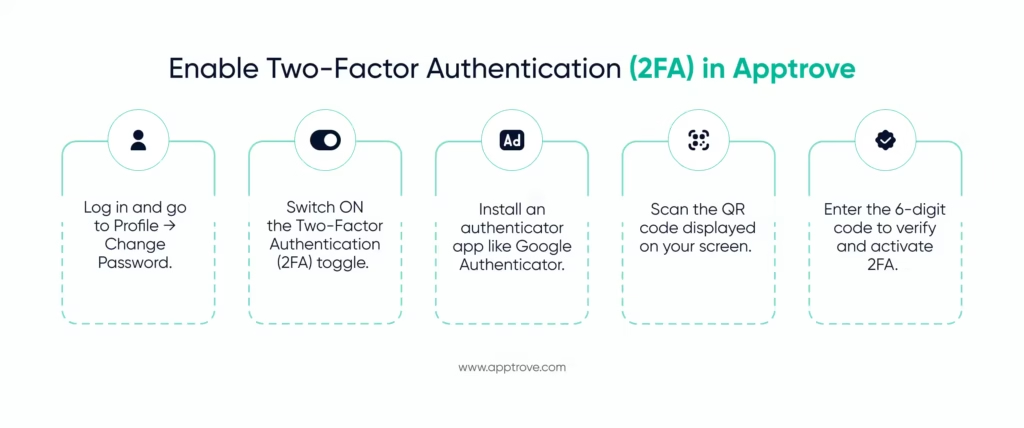
Step 1: Log in To Your Account.
Use your existing credentials to sign in to your Apptrove dashboard and click on Profile -> Change Password. All of your security settings, including two-factor authentication, will be available here.
Step 2: Enable Two Factor Authentication
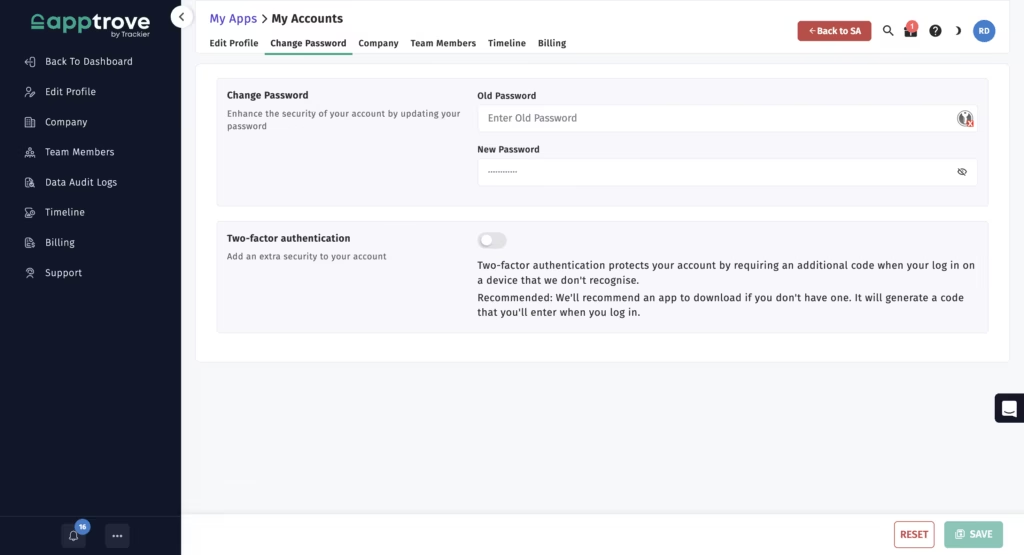
You will find an option for enabling two-factor authentication in the Change Password window. Click the toggle button to turn this feature ON to begin the process of enabling two-factor authentication.
Step 3: Download an Authenticator Application.
If you do not already have one, download an authenticator application (such as Google Authenticator) from your respective app store. The authenticator application will generate time-based verification codes so you can login to your account after enabling the two-factor authentication feature.
Step 4: Link Your Authenticator To Your Apptrove Account
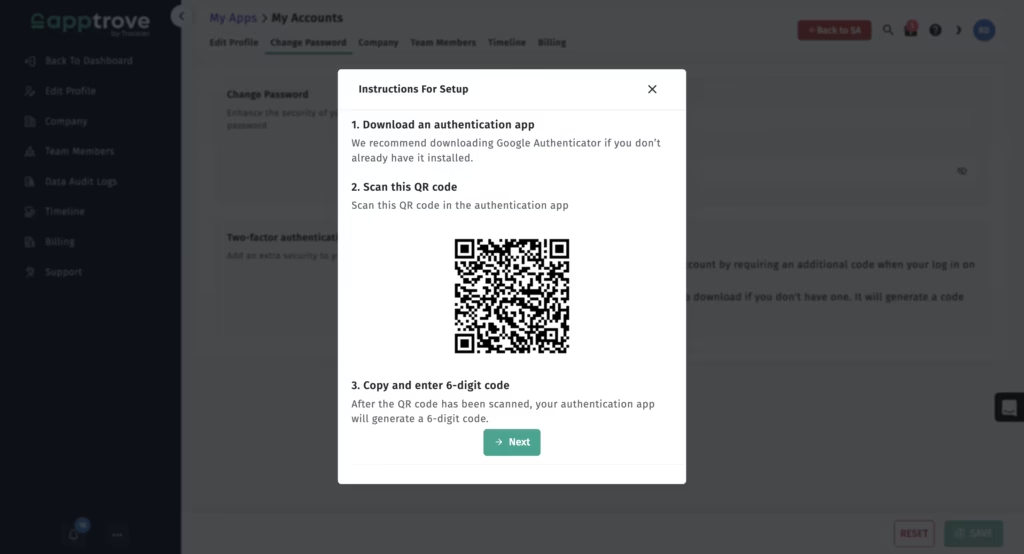
Open the authenticator app on your mobile device and scan the QR code displayed on your Apptrove screen using your authenticator app to associate your account with the application for receiving two-factor authentication codes.
Step 5: Enter the Verification Code
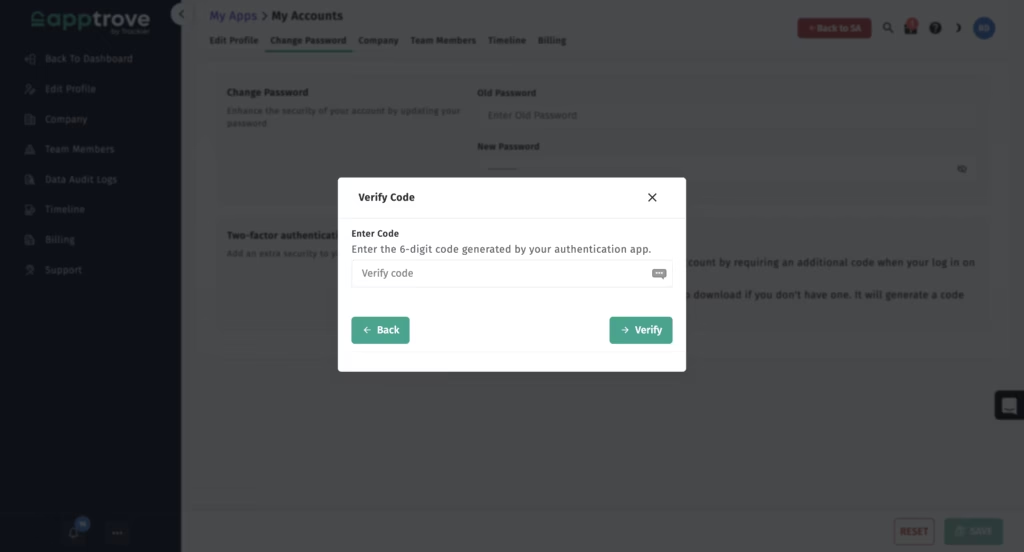
Upon entering a valid 6-digit code generated by your authenticator app, verification will occur in order for you to enable Two Factor Authentication (2FA). When the verification is complete, you will have successfully activated 2FA.
Going forward, with every login following activation, you will be required to enter both your username/password and the time-based code from your authenticator app so that you can confirm, again, that your account is being protected by 2FA.
Best Practices For Using Two-Factor Authentication
Following activation, you should always keep the authenticator app on your primary device. Uninstalling it could leave your account unprotected until you disable 2FA through the account settings. Additionally, if you switch devices, you should re-enable 2FA or risk problems logging into your account.
Conclusion
Activating 2FA represents an incredibly easy yet effective way to better secure your Apptrove account. Any time that there is sensitive data (campaign data, reports, and user insights) available on Apptrove, having this extra layer of security adds an additional level of security and assurance that only people who are authorised have the ability to access that data.
For teams using Apptrove daily, activating 2FA is not simply something they “should do,” it is a security habit to help secure their data, work and their peace of mind.

We are delighted to have assembled a world-class team of experienced professionals who are ready to take care of your queries and answer any questions you may have. Feel free to reach out to us at any time by emailing us at support@apptrove.com or by using the in-platform chat feature. We’d love to hear from you!
from Apptrove https://apptrove.com/how-to-enable-two-factor-authentication-in-apptrove/
via Apptrove


Comments
Post a Comment