How to Enable Privacy Masking for PII in Apptrove (and Why It Matters)
Privacy around data is now mandatory. As regulators and partners both demand that their data have a clean hygiene level, mobile marketers are being asked to find a way of protecting their users’ sensitive identifiers while still maintaining their attribution stack. Privacy Masking from Apptrove has been created to support marketers throughout this process.
This article explains the function of Privacy Masking for PII in Apptrove and how you can turn it on, along with everything else you should know before switching Privacy Masking on.
How to Enable Privacy Masking for PII in Apptrove
The toggle lives in your app’s settings, not the account-level settings. Follow these steps:
Step 1: Log into the Apptrove dashboard and select the App you wish to enable Privacy Masking for.
Step 2: Click Settings from the left-hand panel.
Step 3: Click on the Development Module.
Step 4: Locate and toggle the Privacy Masking setting to ON.
Once Privacy Masking is enabled, the Privacy Masking feature will now apply immediately and universally to all partners/agencies that have access to that specific App and will apply to the following data surfaces:
- Reports
- Raw Logs
- Exported data (CSV, API, Webhooks)
- Postbacks from Partners
What Is Privacy Masking for PII?
Personally Identifiable Information (PII) encompasses any unique information about individuals – such as an IP address, phone number, email ID, or a person’s exact location in space (geo-coordinates) – that can be used to identify them in mobile attribution.
The Privacy Masking feature of Apptrove allows users to mask all PII throughout the entire dashboard, reports, logs, exports, and also any postbacks from partners – ensuring that clients, sub-agents, and partners who access the Apptrove account will never see actual raw personal identifying information.
Masking operates only on the UI layer and data output layer. Attribution logic, fraud detection, and click-to-install matching always continue to use the complete unmasking data internally. Your data continues to be accurate. The screens of your users are clean.
What Gets Masked?
When Privacy Masking is enabled, the following five identifiers are masked everywhere in the platform:
| Field | Original Value | Masked Value |
| IP Address | 157.50.107.11 | 1.1.1.1 |
| Email ID | rahul.sharma@gmail.com | rahxxxx@xxxx.com |
| Phone Number | +91 7654321096 | (+91)765xxxxxx96 |
| Latitude | 28.613939 | 28.XXXXXX |
| Longitude | 77.209021 | 77.XXXXXX |
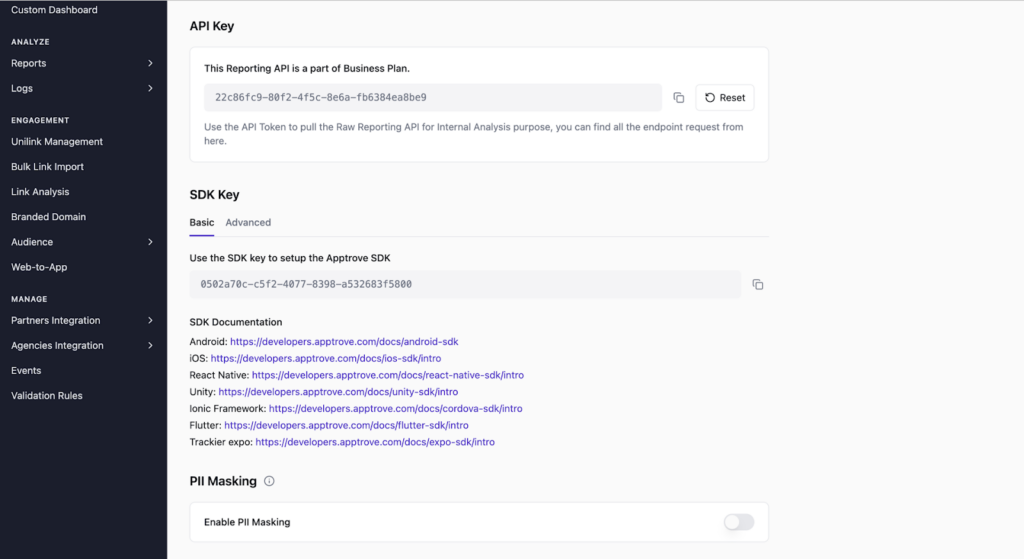
The masking patterns are consistent and deterministic, a partial format is preserved so the data still reads as a valid type (you can tell it’s an IP, or an email, or a phone number) without exposing the actual value.
What Masking Does NOT Affect
The following points detail untouched portions of this new feature:
- Attribution accuracy — Deterministic attribution (the way to determine an advertising source’s “click” corresponds to an “install”) will continue to be done and stored internally prior to masking.
- Fraud detection — Cross-referencing of data to detect fraud (including clicking data compared against installing data) runs and is reported using original IP data.
- SRN Attribution — Integration with other platforms (such as Meta and Google) does not depend on PII visibility from within the UI.
- Geo reporting — Reporting on countries and regions will remain functional in this new feature; latitude/longitude will still be stored and masked post-reporting only.
The 72-Hour Cooldown Rule
Privacy Masking has a ’72-Hour Cool Down Period.’ Once Privacy Masking is enabled, you will not be able to disable Privacy Masking for a period of 72 hours (3 days). If you attempt to disable Privacy Masking prior to the expiry of the 72-Hour Cool Down Period, you will receive a message stating:
‘You will be unable to disable this setting for 3-Day(s) from activation. Please try again after the Cooldown Period has passed.’
This Cool Down Period is implemented to ensure that there is no rapid toggling of the Privacy Masking setting and to help maintain the integrity of data and prevent any discrepancies from showing up in your reports and/or postbacks. Please ensure you have discussed enabling Privacy Masking as an option with your team before making this decision.
What Happens Across Each Data Surface
Reports and Dashboards
All PII is shown using a mask. The way filtering (searching, etc.) works hasn’t changed; it will still function using the masked value, and so your workflow will not change. Also, geographic reporting (with country/region breakdown) will continue to function normally.
Raw Data Logs
All of the column names will remain exactly the same, but all of the PII field values will be replaced with masked PII values (it will still look like the same data structure, just the sensitive information will be hidden).
Exports (CSV / API / Webhooks)
All PII will be masked when you download your data (regardless of which format you download it in). You will NOT be able to download the “raw” PII once PII is masked. Clients and downstream will only ever receive the masked PII values.
Partner Postbacks
PIIs being passed to partners for postbacks will be masked, so you can ensure that any data privacy that you have with your dashboard is extended throughout the entire ecosystem of partners.
Ready to Protect Your User Data?
Activating Privacy Masking is a quick one-minute task that enhances your compliance posture, builds partner trust, and improves the hygiene of your internal data. However, keep in mind the 72-hour rule and you should be sure that everyone in your organization is on the same page before you turn it on.
We are delighted to have assembled a world-class team of experienced professionals who are ready to take care of your queries and answer any questions you may have. Feel free to reach out to us at any time by emailing us at support@apptrove.com or by using the in-platform chat feature. We’d love to hear from you!
from Apptrove https://apptrove.com/how-to-enable-privacy-masking-for-pii-in-apptrove/
via Apptrove


Comments
Post a Comment