How to Set Up Multi-Store Android Attribution in Apptrove?
Your Android app is live on Google Play, Huawei AppGallery, and Amazon Appstore, three stores, three audiences, and three completely separate traffic streams. But if your mobile measurement platform treats them as one, you are making budget decisions based on blended numbers that can mislead you. Which store is actually driving installs? Which campaigns are converting on Huawei devices but stalling on Google Play? Without proper multi-store Android attribution, you cannot answer these questions.
Apptrove is built to solve exactly this. Its multi-store Android attribution framework lets you register the same app once per store, create store-specific or unified campaign links via UniLink, and read granular, per-store performance data from a single dashboard. This guide walks you through every step of setting it up — from adding your first store-specific app record to reading the store-level reports that will sharpen your next campaign decision.
Before you begin, make sure your Apptrove SDK is fully integrated, and your in-app events are being tracked. Attribution accuracy depends entirely on the quality of the signals your SDK sends.
At a Glance: Apptrove lets advertisers set up multi-store Android attribution to track the same app across separate stores independently. This means clean install data per store, intelligent traffic routing via UniLink, and campaign insights broken down by marketplace.
With multi-store Android attribution enabled in Apptrove, you can:
• Attribute installs and in-app engagement for each store individually — no blended data.
• Route users to the correct store automatically using UniLink, based on their device.
• Analyze store-specific campaign performance to optimize budget allocation per marketplace.
• Detect re-engagement and re-attribution patterns broken down by store source.
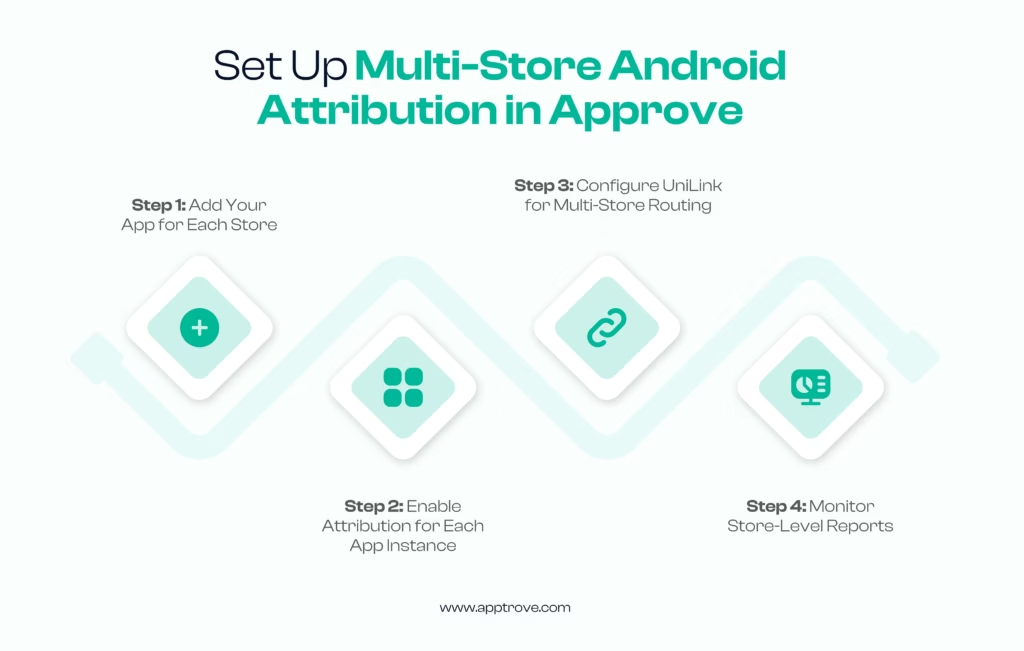
Step 1: Add Your App for Each Store
The foundation of multi-store Android attribution is a separate app record in Apptrove for every store you distribute through. This is not duplication — it is the architectural separation that makes clean, per-store attribution possible. Think of each record as a distinct attribution container: same APK, different store, isolated data.
A. Log in to your Apptrove dashboard.
B. Navigate to Applications → Add Application.
C. Add the same Android app for each store you want to track — for example, Google Play, Huawei AppGallery, and Amazon Appstore. Each gets its own entry.
D. For each instance, enter the app’s name, package name, and the store URL specific to that marketplace. The package name will auto-populate once you paste the store URL.
Note: Your package name will be identical across all store instances — it is tied to your APK. Apptrove treats each store registration as an independent attribution entity regardless, which is precisely what keeps your store-level data from bleeding into each other.
Repeat this process for every store in your distribution strategy. Three stores means three separate app entries in your Apptrove dashboard. That separation is not overhead — it is the prerequisite for every store-level insight you will read in Step 4.
Step 2: Enable Attribution for Each App Instance
With your app-store records created, the next step is activating the attribution layer for each one. This is where you connect the tracking mechanics — campaign links, SDK signals, postback configurations — to the correct store record so that every install, re-engagement, and conversion is assigned to the right source.
A. Open each app instance in your Apptrove dashboard and enable attribution within the application settings.
B. Create campaign links specific to each store. A tracking link pointing to Google Play should be attributed to your Google Play app record only — not your Huawei or Amazon instances. Mixing them collapses your store-level reporting.
C. If you prefer a single URL across stores, set up a UniLink (covered in Step 3) to route traffic dynamically while still crediting the correct store record.
D. Verify that all tracking parameters — partner macros, device identifier fields, and postback event mappings — are correctly configured for every app-store combination before driving any traffic.
Important: Do not skip testing each store’s attribution link independently before launch. A single misconfigured parameter on one store instance will distort your comparative reports and make store-level analysis unreliable — often in ways that are not immediately obvious.
It is also worth enabling attribution for any in-app events you are tracking, not just installs. Store-level attribution without event-level data leaves you measuring volume, not value. The most actionable reports come from knowing not just where users installed from, but what they did next.
Step 3: Configure UniLink for Multi-Store Routing
Running separate campaign links for each store is accurate but operationally heavy — every creative, every channel, every media partner needs a different link. UniLink solves this by giving you a single URL that detects the user’s device and routes them to the correct store automatically, while preserving clean multi-store Android attribution data behind the scenes.
A. Build a UniLink in Apptrove that covers all the stores your app is distributed through. The UniLink engine uses device signals to determine the appropriate store for each user.
B. Configure fallback URLs for each store. If the primary deep-link path is unavailable — for example, when the app is not yet installed — the fallback sends the user to the correct store listing rather than a broken page.
C. Enable deep-linking within UniLink so that users who already have the app installed are taken directly to the relevant in-app screen. A user landing on a generic home screen after clicking a campaign link is a wasted re-engagement opportunity.
D. Confirm that each store routing path inside your UniLink maps to the correct Apptrove app record. This mapping is what ensures the install or re-engagement is attributed to the right store, even though users arrive via one shared URL.
Pro Tip: UniLink is especially powerful for multi-channel campaigns where the same creative runs on Meta, Google, and email simultaneously. Instead of building store-specific variants of each ad, you run one creative with one UniLink. Apptrove handles all store routing and preserves your per-store attribution data without any additional work on your end.
Step 4: Monitor Store-Level Attribution Reports
Once your multi-store Android attribution setup is live and traffic is flowing, Apptrove’s reporting surfaces the per-store data you built this structure to capture. Here is a breakdown of the key metrics and what each one means for your decision-making.
| Metric | What It Tells You |
| Store-Specific Installs | Number of installs attributed to each individual store — compare which marketplace delivers the most volume. |
| Re-Engagements | Users returning to the app per store, helping you see where re-targeting spend generates the most return activity. |
| Campaign Performance | Store-wise insights so you can optimize how much budget flows to each marketplace based on actual conversion data. |
| UniLink Clicks | Number of users routed via UniLink to each store — validates your routing logic and confirms traffic is distributed correctly. |
Reporting Tip: Review store-level attribution reports weekly while campaigns are active. Per-store patterns often become visible within the first few days — Huawei AppGallery users may show stronger engagement in MENA or South-East Asia, while Amazon Appstore installs may show higher LTV in North American markets. These insights only exist if your attribution is cleanly separated by store.
Use the App Store and Apptrove Discrepancies article to understand and reconcile any differences between what individual store dashboards report and what your Apptrove attribution data shows. Discrepancies are normal — understanding why they exist is what separates informed optimization from guesswork.
Best Practices for Multi-Store Android Attribution
1. Always Add Each Store as a Separate App Record
Registering one app entry per store in Apptrove is the non-negotiable first step. Combining multiple stores under a single app record merges your attribution data at the source — there is no way to un-blend it later. The time cost of adding separate records upfront is negligible compared to the analytical value it unlocks.
2. Use UniLink for Any Campaign Spanning Multiple Stores
For campaigns that touch more than one store — which is most of them — UniLink is the operationally cleaner and analytically safer choice. One URL, automatic device-based routing, and all attribution still lands on the correct per-store record. Build your UniLink before you build your creatives, not after.
3. Validate Attribution Links Before Launch
Run a full end-to-end test of every attribution link and every UniLink routing path in a staging environment before pushing live traffic. Test each store path independently. Confirm that clicks register, installs attribute to the correct store record, and postbacks fire as expected. One overlooked misconfiguration across a multi-store setup can corrupt days of data.
4. Review Store-Level Reports on a Regular Cadence
Set a recurring review — weekly during active campaigns, monthly during quieter periods. Compare install volume, re-engagement rates, and campaign performance across stores. The goal is to identify which stores are delivering quality users, not just volume, and to shift budget accordingly. Your multi-store Android attribution setup gives you the data to make that call confidently.
5. Align Your In-App Event Tracking Across All Store Instances
Attribution at the install level is a starting point. The real value of per-store data comes when you can compare post-install behaviour — purchase rates, session depth, feature adoption — across your Google Play, Huawei, and Amazon user bases. Make sure your in-app events are mapped consistently across all store instances so your comparisons are apples-to-apples.
Why Multi-Store Android Attribution Matters for Your Growth Strategy
Android fragmentation is a real distribution reality. While Google Play still dominates globally, Huawei AppGallery controls a significant share of devices in markets where Google Mobile Services are unavailable — including much of China, parts of the Middle East, and Eastern Europe. Amazon Appstore serves a distinct user base through Fire devices and the Amazon ecosystem. Running across all three without separate attribution is like managing three different revenue streams from a single bank account — you know the total, but not the breakdown.
Multi-store Android attribution gives you the breakdown. It tells you which stores are growing, which are plateauing, and which deserve more budget. It also helps you detect platform-specific install referrer patterns — Huawei devices use the Huawei Referrer API, which behaves differently from the Google Play Install Referrer. Understanding these differences at the attribution level helps you build more accurate models and avoid misattribution in your reports.
For a deeper look at how Apptrove’s attribution model handles these signal types, see Apptrove Attribution Model.
Wrapping Up
Setting up multi-store Android attribution in Apptrove is a structural decision as much as a technical one. The steps are straightforward: register one app record per store, enable and validate attribution for each, configure UniLink to unify your campaign links without blending your data, and read the store-level reports that result. The discipline is in the setup — clean records in, clean insights out.
Done correctly, your Apptrove dashboard becomes the single source of truth for how each store is performing: which marketplace is growing, which campaigns are converting, and where your next dollar of attribution-informed budget should go. That is the point of multi-store Android attribution — not just measurement, but the confident decisions that measurement enables.
FAQs
What is multi-store Android attribution?
Multi-store Android attribution is the process of tracking and crediting app installs, re-engagements, and in-app events separately for each Android store your app is distributed through — such as Google Play, Huawei AppGallery, and Amazon Appstore. Instead of seeing combined install numbers, you get a clean per-store breakdown that tells you exactly where each conversion came from.
Can I track the same Android app across multiple stores in Apptrove?
Yes. Apptrove supports multi-store Android attribution by letting you register the same app as a separate entry for each store. Each registration gets its own attribution record, campaign links, and reporting data, so your store-level insights remain independent and accurate.
What is UniLink and how does it help with multi-store attribution?
UniLink is Apptrove’s intelligent deep link solution. For multi-store attribution, it lets you use a single campaign URL that automatically routes users to the correct store based on their device — Google Play for most Android users, Huawei AppGallery for HMS devices, or Amazon Appstore for Fire devices. Attribution is still credited to the correct per-store record, so your data stays clean even though users arrive through one shared link.
How do I know if my multi-store attribution is set up correctly?
The most reliable check is an end-to-end test before launch: click each attribution link (or each UniLink routing path), complete an install, and confirm that the install appears under the correct store record in your Apptrove dashboard. Also verify that postbacks are firing for the events you are tracking on each store instance.
Why do my Apptrove install numbers differ from what the store dashboard shows?
Discrepancies between store-reported installs and Apptrove attribution data are normal and expected. Stores count every install; Apptrove counts attributed installs — those that can be traced back to a marketing touchpoint. Organic installs, re-installs, and direct downloads all contribute to the gap. See App Store and Apptrove Discrepancies for a full explanation.
Do I need a separate SDK integration for each store?
No. Your Apptrove SDK integration is done once at the app level. The separation between stores is managed at the dashboard level through separate app records, not through multiple SDK implementations. However, if you are targeting Huawei AppGallery, your developer should confirm that the Huawei Referrer API dependency is included in the build to ensure accurate install referrer attribution on HMS devices.
Can I use multi-store attribution for re-targeting campaigns?
Yes. Once you have separate app records per store and attribution enabled, Apptrove tracks re-engagements and re-attributions at the store level as well. Combined with the re-targeting configuration covered in How to Use the Re-Targeting Feature in Apptrove, you can measure which store’s user base responds best to your win-back campaigns.
Need Help?
We are delighted to have assembled a world-class team of experienced professionals who are ready to take care of your queries. Feel free to reach out at any time by emailing support@apptrove.com or by using the in-platform chat feature. We’d love to hear from you!
from Apptrove https://apptrove.com/how-to-set-up-multi-store-android-attribution/
via Apptrove


Comments
Post a Comment