How to Configure Session Management in Apptrove to Secure User Access?
Enhance the security of your Apptrove account through the benefit of Session Management. Administrators can limit the number of devices or browsers on which a user can log in at the same time, automatically log out users who have been inactive, and manage active user sessions from one place.
The uses of Session Management
An administrator can use Session Management to:
- Control the number of simultaneous sessions a user can have;
- Automatically log out from sessions after a designated period of inactivity;
- View active and inactive sessions to better monitor user activity; and
- End certain or all active sessions for a user when needed.
By utilizing the Session Management feature, administrators gain more control of user access and the security of their accounts. Administrators can establish how many concurrent user sessions each user has, configure automatic logout after a period of inactivity, monitor user sessions, and terminate user sessions on demand.
What can Administrators do from the session Management Page?
Administrators will be able to do the following from the Session Management Page:
- Limit the number of concurrent sessions per user
- Configure automatic logout after inactivity
- View user sessions that are currently active and those that are no longer active (i.e., terminated); and
- Log out individual user sessions as well as end all active user sessions when desired.
Important Note
If the maximum concurrent session limit is not configured, only one active session per user is allowed by default.
To allow team members to stay logged in across multiple devices or browsers simultaneously, configure the concurrent session settings as required.
How to Access Session Management
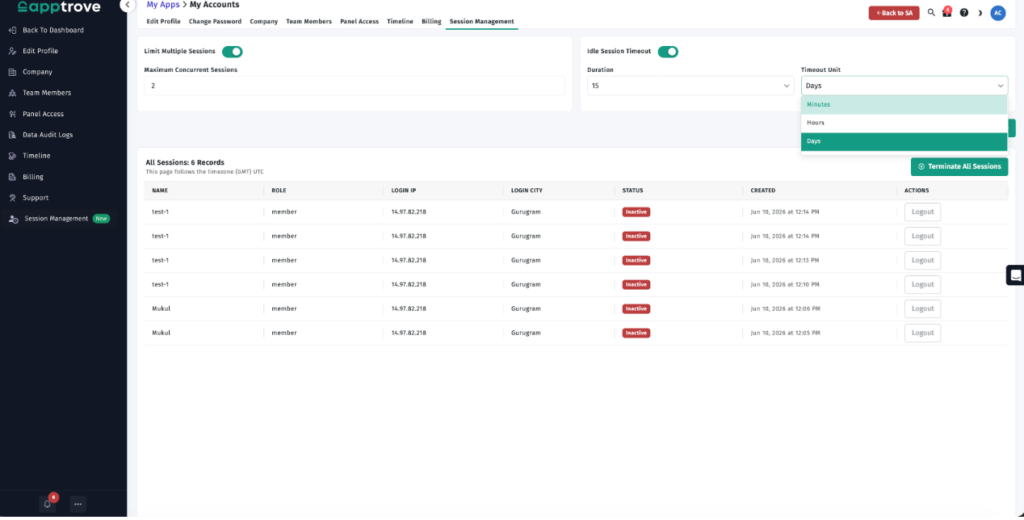
To open the Session Management page:
- Log in to your Apptrove Account.
- Go To My Account.
- Click on the Session Management tab.
- Limiting Number Of Active Sessions
Session Management settings let you specify how many sessions a single user’s account can have simultaneously.
How to Limit Multiple Sessions?
- Configuring The Concurrent Session Limit:
- Enable the Limit Multiple Sessions toggle.
- Specify the maximum number of concurrent active sessions.
- Click Save.
For example, if you set a limit of “2” then one user may only have two active sessions.
Configuring The Idle Session Timeout
The Session Management feature allows for automatic logout of users after a defined length of time.
To Set an Idle Session Timeout:
- Enable Idle Session Timeout.
- Specify the idle timeout in length of time.
- Choose a time unit:
- Minutes
- Hours
- Days
- Click Save.
The user will be automatically logged out once the defined inactivity period is reached and must log back into their account.
How to Manage User Sessions
The Session Management Page displays user sessions, complete with visibility to the following:
Session details can include:
- User Name,
- User Role,
- Login IP Address,
- Login City,
- Session Status,
- Login Time,
- YourUserSessions.
At the discretion of administrator(s), the following options from the Session Management Page could be accomplished:
- Clicking Logout from this screen will terminate only that user’s session.
- Clicking terminate all sessions will immediately log out all current users who are logged into the application.
Thus, through the use of the session management controls, monitoring and managing user access while maintaining the integrity of the user accounts can be easily accomplished.
We are delighted to have assembled a world-class team of experienced professionals who are ready to take care of your queries and answer any questions you may have. Feel free to reach out to us at any time by emailing us at support@apptrove.com or by using the in-platform chat feature. We’d love to hear from you!
from Apptrove https://apptrove.com/how-to-configure-session-management-in-apptrove/
via Apptrove


Comments
Post a Comment