How to Use Bulk Link Import in Apptrove?
Handling a number of deep links separately can use up a lot of your time. This is where importing links in bulk makes things easy. Instead of generating one link after the other, you can prepare a CSV of required information for the deep links and upload it to the system.The bulk link upload feature is handy when you have many promotional campaigns running, managing different sources of media, or creating deep links in bulk without wasting your time.
In this tutorial, we will explain how to make use of the bulk link upload feature, prepare a proper CSV file, get to know every field accepted by the platform, and understand the upload status after the links are uploaded.
How to Use the Bulk Link Import?
The bulk link upload feature is located in the All Links tab and can be completed in a few steps.
Step 1: Open the Bulk Link Import tab
Open the All Links section from the dashboard and proceed to go to the Bulk Link Import section.
Step 2: Create Collection
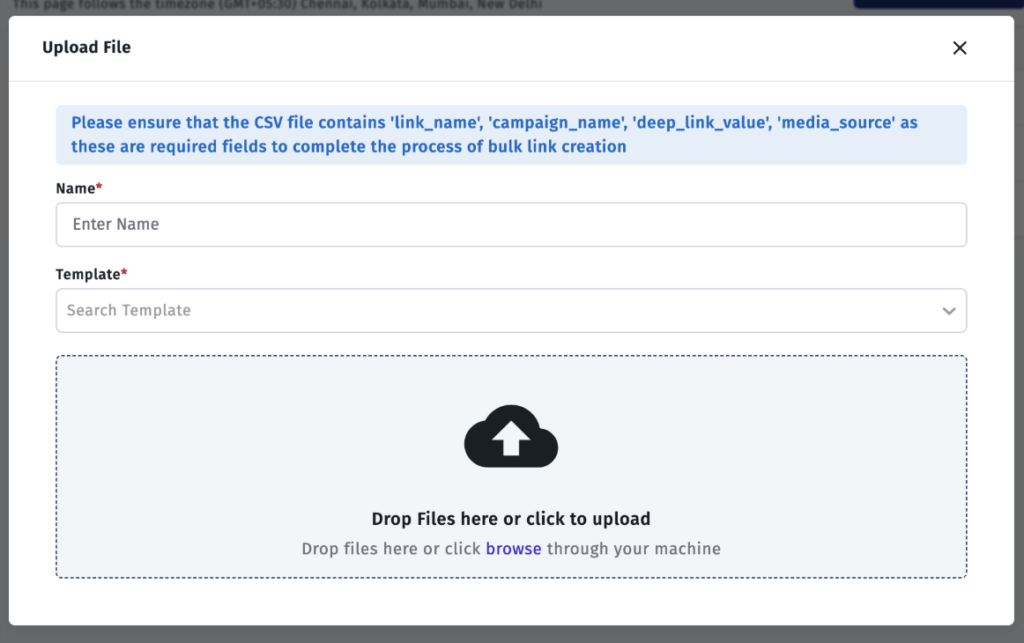
Press the + Create Collection button because you will be asked to provide the three details:
Once everything is selected, upload the CSV file to begin the bulk link import process.
How to Prepare the Bulk Link Import CSV File
Before starting the bulk link import, you’ll need to create a CSV file containing all the required information for every deep link.
Some fields are mandatory, while others are optional and can be used for advanced attribution, redirects, and social sharing.
Mandatory Fields
The following fields are required for every bulk link import.
| Field Name | Description |
| link_name* | Name of the link (Maximum 50 characters) |
| campaign_name* | Campaign name (Maximum 50 characters) |
| deep_link_value* | Deep link parameter (Maximum 50 characters) |
| media_source* | Media source name (Maximum 50 characters) |
Fields marked with an asterisk (*) are mandatory.
Optional Fields
The bulk link import feature also supports several optional parameters that provide additional flexibility.
| Field Name | Description |
| custom_link_id | Custom URL ID (Maximum 50 characters) |
| is_retargeting | Enter true for retargeting campaigns; otherwise, “false.” |
| reengagement_window | Defines the attribution window after re-engagement for in-app events |
| lookback_window | Maximum duration from click to install or re-engagement for attribution |
| status | Status of the link |
| desktop_rurl | Redirect URL for desktop users |
| android_rurl | Redirect URL for Android users when the app is not installed |
| ios_rurl | Redirect URL for iOS users when the app is not installed |
| cost_currency | Currency used for cost attribution |
| cost_value | Cost value associated with the selected currency |
| fallback_scheme | Fallback URL if the application is not installed |
| sm_title | Social media sharing title |
| sm_desc | Social media sharing description |
| sm_image_url | Social media sharing image URL |
| fire_dnl | Enter true when importing Firebase links; otherwise, false |
Additional Attribution Parameters
Your bulk link import CSV can also include the following attribution parameters for campaign tracking:
- p1
- p2
- p3
- p4
- p5
- channel
- ad
- ad_id
- ad_group
- ad_group_id
These parameters allow you to organize campaigns and analyze attribution more effectively.
Download the Sample CSV Before Bulk Link Import
If you do not know the required format, it is a good idea to download the sample CSV from the system before attempting to import links in bulk.
The sample file demonstrates:
- Mandatory columns
- Formats of allowed data
- Structure of parameters
- Values that need to be included in each field
Using the sample file minimizes a number of errors and simplifies the bulk link importing.
How to Know the Status of the Bulk Link Import File?
Once you upload your file, the system validates the file and produces one of three statuses.
Invalid
Indicates that nothing was created because the uploaded file has an incorrect format or structure.
Check the CSV file formatting, correct the mistakes, and try to import links in bulk again.
Valid
If you see the Valid status in the system, this means that all links from the CSV file were created without failures.
All imported links will be available right away after the import is completed.
Partially Imported
A status of Partially Imported indicates that only some links were created and others failed to be created.
If this is your case, you can download the results file and find out which rows failed to be imported and why
View Imported Links After Bulk Link Import
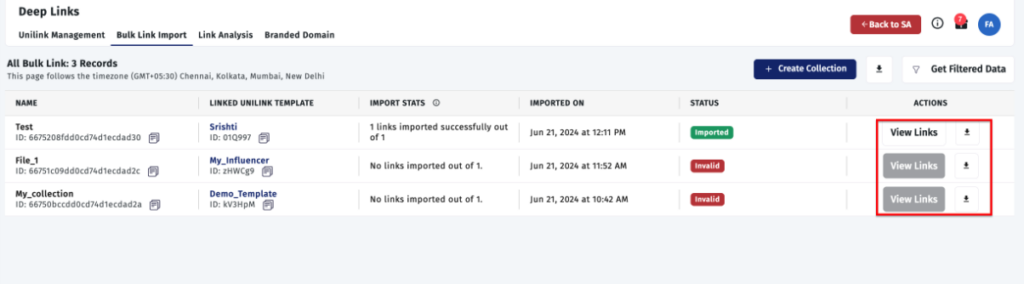
When the process of bulk link import has been completed successfully, click on View Links to reveal each generated deep link.
The system then automatically makes any changes to all links generated inside the template chosen during import, thus eliminating the need for mapping links manually.
Streamline deep linking with bulk link import
The bulk link import feature is one of the methods of creating multiple deep links very quickly while maintaining the same configuration. You must prepare a CSV file correctly and check the upload status thereafter. Regardless of how many links need to be created, bulk link import proves an effective way of doing it.
from Apptrove https://apptrove.com/how-to-use-bulk-link-import-in-apptrove-how-to-hub/
via Apptrove


Comments
Post a Comment