How to Disable Install Postbacks in Apptrove Without Losing Install Tracking?
The installation of each successful application provides a small yet relevant data trail. This, in turn, assists marketers and attribution teams in linking installations to campaigns, partners, and sources of acquisition. Install postbacks are one of the components that enable this process to occur because they facilitate server-to-server notifications, which means that partners can get the required data for their reporting and attribution activities.
However, there are campaigns where sending such notifications is not necessary. For example, when performing A/B testing, running an internal analysis of the campaign, or if a certain ad partner has restricted access to install data, marketers require more control over the way installation information is transmitted. Therefore, deactivation of install postback becomes relevant.
Thanks to Apptrove, there is no need to recreate the campaign or change the attribution setup in any way in order to do that. A simple parameter introduced in the CTA or the attribution link ensures that the install postback will not be sent even though the installation is recorded in the system.
When Should You Disable an Install Postback?
There are times when temporarily disabling an install postback can simplify campaign management tasks. The important point is that by disabling the install postback, one does not disable install tracking. This simply means that marketers have more control over information with respect to installations shared with the affiliates or partners involved.
Campaign Testing
To test a campaign properly, one needs to ensure the existence of a controlled environment. In case you are conducting an internal experiment, you might need your installs to be seen on the Apptrove dashboard notwithstanding the fact that all the affiliates have been notified. Temporary disabling of the install postback makes it possible for you to make the necessary tests internally without notifying your partners.
Managing the Flow of One’s Data
In order to report and share different campaigns effectively, one might need to change the way data flow and reporting is organized. Thus, by disabling the installation postback, marketers can adjust the way they report on installations.
Being Compliant with Partner Agreements
Advertising partners and ad networks can impose certain restrictions concerning information sharing. Thus, if there is an agreement with a partner which prohibits the sharing of installation information, you can disable the installation
How to Disable an Install Postback in Apptrove?
Turning off an install postback within Apptrove is relatively simple. It involves finding the correct attribution link and adding the specific parameter to it.
1. Log into your Apptrove Dashboard
Begin by logging into the Apptrove dashboard with your credentials. Once inside the Partner dashboard, select the application for which you would like to disable the install postback.
Ensure that you are selecting the correct application before changing the attribution link, especially if you are managing multiple campaigns.
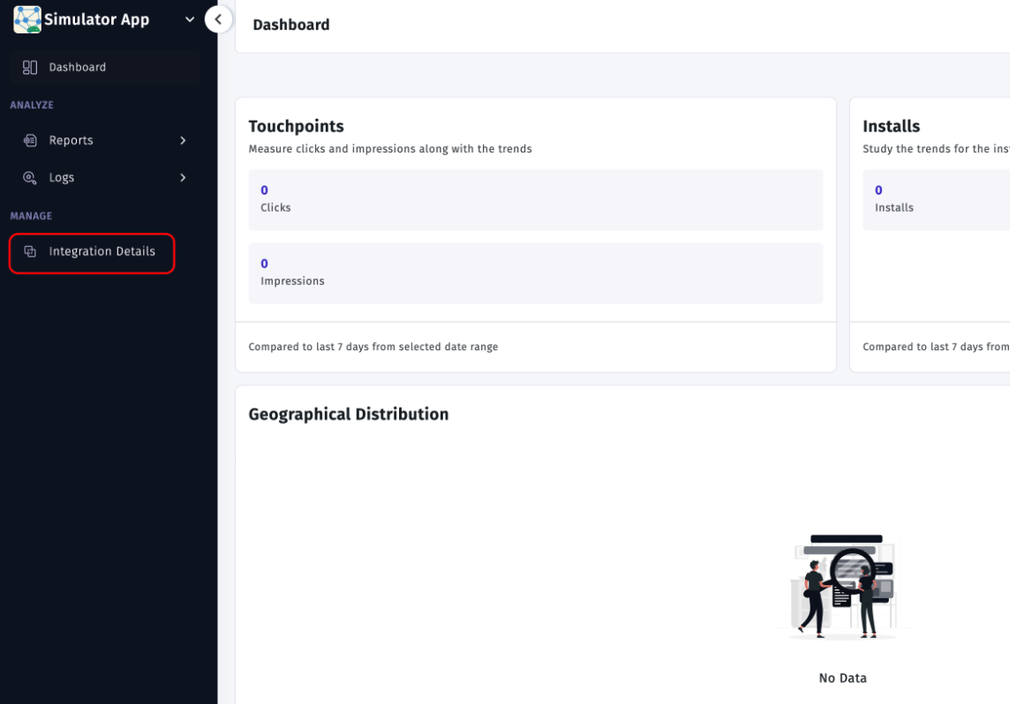
2. Proceed to Integration Details
Once you have selected your application, go to Integration Details. From there, select Attribution Links.
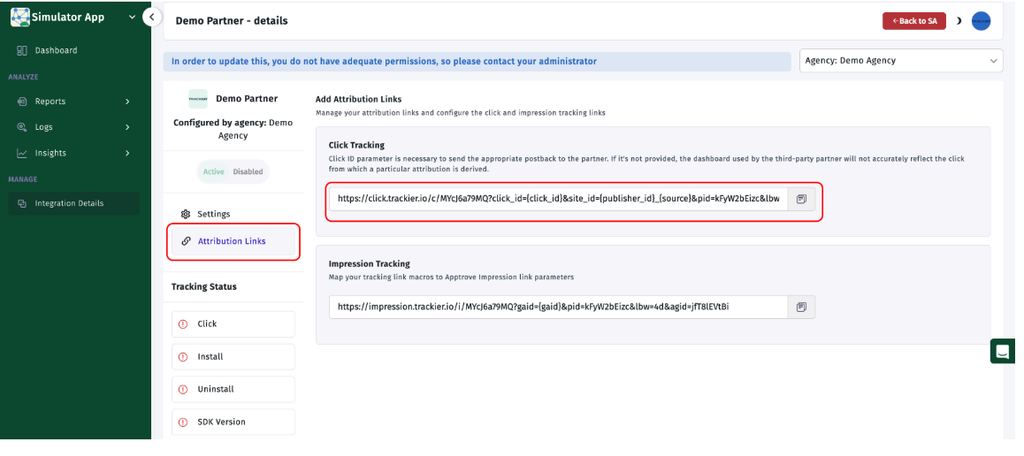
You will see all the attribution links related to your campaigns. Look for the CTA link of the campaign for which you want to prevent the install postback from being triggered and copy it.
3. Put in the Install Postback Parameter
Now comes the important part. Add the following parameter to your CTA or attribution link:
tr_disableinstallpb=true
For example, an attribution URL can look like this:
This parameter indicates to Apptrove not to carry out the installation postback following the installation event. Nevertheless, installation continues to register building in the Apptrove dashboard.
This is an important distinction, as you do not completely disable install tracking; you only block out sending the installation notifications to affiliates.
This configuration means that:
- The installation is recorded in Apptrove.
- Install postbacks are not sent to affiliates.
The install postbacks from other events continue working in their modus operandi with no reference to the parameter value you have recently added.
If your campaign has install postbacks established for events like registration or purchase, those will continue functioning even if the install postback is switched off.
4. Test Your Campaign.
After you’ve added the parameter, do not think that everything is functioning as it should. Test your CTA link to check if the installation is being traced and the install postback is not sent.
This can be accomplished by changing the campaign URL with a new parameter and launching a controlled test install. You should also check your Apptrove dashboard to verify that the install has been logged and that the affiliate has not received the install postback.
Testing is particularly important for live campaign modifications, and it can catch configuration problems before they affect your campaign reporting.
How to Enable Install Postbacks?
Want to resend your installs? You don’t have to set up a new attribution link.
Simply delete the parameter from your attribution link or change its value to:
tr_disableinstallpb=false
As soon as you disable the parameter or switch it to false, you can reactivate the install postback according to your campaign parameters.
How to Retain Install Tracking While Regulating Data Sharing?
Disabling the install postback does not have to indicate loss of control over your acquisition activities. Using the required parameter in your Apptrove attribution link allows you to track installs on your dashboard while avoiding sending those installation notifications to your affiliates.
This scenario offers marketers more flexibility to conduct internal tests and manage data sharing with partners. Instead of overhauling the whole attribution process, you can take advantage of the parametrization feature available at the level of the attribution link.
The outcome is better data flow management: you can monitor the installations, keep the data in your dashboard and decide whether or not to share the install postback.
from Apptrove https://apptrove.com/how-to-disable-install-postbacks-in-apptrove/
via Apptrove


Comments
Post a Comment